Configuring NEXGEN 311 Languages - NEXGEN 311
Users have the ability to display 311 Portal lookups in different languages to accommodate for non-English-speaking NEXGEN users. This feature is useful for giving these users the option to read and complete Service Request forms on the 311 Portal, thereby improving accessibility to the site.
Navigating to NEXGEN 311 Configuration
To configure NEXGEN 311 from the back end:
- Click "Settings" in the blue tool bar on the left.
- Click "Integration."
- In the Integration module, click "311 Service."
Configuring Languages for Problems
- Navigate to the 311 Service settings module by following the steps in the section above.
- Click "Problems."
- Edit or create a new problem.
- To edit, click "Edit" next to an existing line item.
- To create, click "+Add" in the top right corner of the module. When finished, the new problem will appear in the list of existing problems. Click "Edit" next to it.
- A menu will appear where you can view editable information for the problem. Click the "Translate" button to open the Translate menu (shown to the right).
- Translate the original text:
- Select a language from the Language drop-down.
- View and edit the translated name and display message as needed.
- Click the blue checkmark to save, or click the X to cancel.
- Your text has now been translated. Click "Ok" at the bottom right of the pop up to save your changes.
- If you would like to add a translation for another language, repeat steps 3-6.
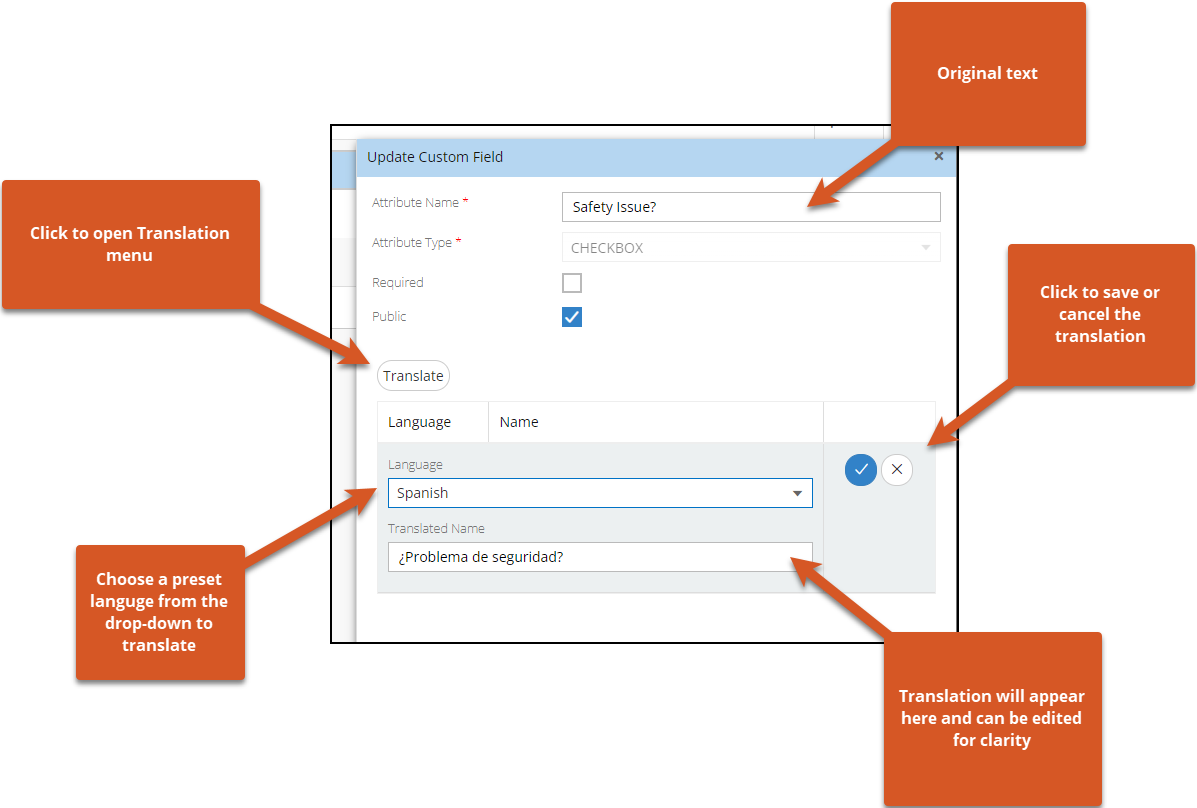 Configuring Languages for Custom Fields
Users can also translate custom fields in the 311 portal. To do so:
- Navigate to the 311 Service settings module by following the steps in the "Navigating to NEXGEN 311 Configuration" section above.
- Click "Custom Fields."
- Edit or create a new custom field.
- To edit, click the pencil icon next to an existing line item.
- To create, click "+Add" in the top right corner of the module. When finished, the new custom field will appear in the list of existing custom fields. Click "Edit" next to your new custom field in the list.
- A menu will appear where you can view editable information for the custom field. Click the "Translate" button to open the Translate menu (shown to the right).
- Translate the original text:
- Select a language from the Language drop-down.
- View and edit the translation as needed.
- Click the blue checkmark to save, or click the X to cancel.
- Your text has now been translated. Click "Save" at the bottom right of the pop up to save your changes.
- If you would like to add a translation for another language, repeat steps 3-6.
Related Articles
Delete a Problem Level - NEXGEN 311
Problems in NEXGEN 311 are the types of issues users can report using the 311 Portal. These problems are organized into hierarchies, meaning they can be at either the parent level or the child level. If you no longer need a certain problem type in ...Custom Fields - NEXGEN 311
Custom fields can be created in the 311 Service settings and are used to gather more information from users when they are submitting a service request through the NEXGEN 311 Portal. See below for instructions on how to add custom fields to your 311 ...Edit Notification Templates - NEXGEN 311
Notification templates help build out the email and text notifications that users receive if they decide to follow a 311 Service ticket. These templates are prebuilt into the NEXGEN site, but if desired, you can edit the text and merge fields ...Create a Parent or Child Problem Type - NEXGEN 311
You can configure problem types in your NEXGEN 311 site to allow for users to select different pre-set issues to report. These problems are organized in a hierarchy in NEXGEN; parent problems act as categories in which child problems live. This ...Edit or Delete a Custom Field - NEXGEN 311
Custom fields are fields in NEXGEN 311 that can be customized to obtain more information from your 311 Portal users. These fields in the Custom Fields section of the 311 Service settings and are applicable to all service request submission forms. If ...
Recent Articles
Video Guide: How to Use NAMI Dashboards
Where to Access NAMI Changing Tabs and Interactive Functionalities <br> How to Filter, Drill Down, and View Underlying Data <br> Example Flow Using Blue and Green TabsJune 2026 New Feature Webinar
Latest Phone Release - Version 2.0.5 (June 2026)
Phone Application Updates Asset Inventory Users can now type in an asset QR code in the search bar to find an asset in addition to scanning. (#23758) Form A quick action button to create a form will now be visible in the Hotspot. Users can tap to ...iPad Version 3.0.6 (April 2026)
iPad Updates Bug Fixes Resolved comments cutting off on mobile devices. (#24035) Fixed the issue of a Flag label unintentionally showing when completing assets. (#26071) Users should now be able to request items that are at zero quantity from the ...Version 16.2.1 (04.30.26)
Web Application Update - May 2026 Web Version 16.2.1 Release items related to a support ticket submissions will be included in parenthesis at the end of a line item. NEXGEN queries should now plot on the map as expected. (#27028) The Show In Store ...