Timesheet Module Overview - iPad
The Timesheet module is available on mobile devices and allows users to be able to manage their timesheets. In addition to this, users can also view a Weekly Overview, which shows users a handy summary of their time.
Timesheet Module Overview
The Timesheet module is a way for NEXGEN users to be able to
log their work time without having to use an external timesheet system. In
addition to the convenience of having a built-in way to record hours, the
Timesheet module has a few other features and uses:
- Any time you add to your work orders or service requests in NEXGEN is automatically added to the NEXGEN Timesheet module. This means that users do not have to re-enter their hours into NEXGEN's timesheet system if they remember to log their time in their work orders or service requests.
- You can check whether you remembered to add time to your work orders and service requests by checking the Timesheet module. For example, if you know you worked on a work order, but your hours do not reflect that in the Timesheet module, it can serve as a helpful reminder for you to go back and add time to that work order.
- You can see an overview of the week's hours using the Weekly Overview feature. This feature displays your entered hours in both a bar graph and in a list view. Currently, the Weekly Overview is only available on mobile; it is not offered on the NEXGEN web app.
 Note: Though users are fully capable of logging their time through the Timesheet module on the iPad, they can only submit their finished timesheets through the web app. NEXGEN does not currently support submission of completed timesheets through NEXGEN mobile.
Navigating to the Timesheet Module
To get to the Timesheet module:
- Tap the NEXGEN Hot Spot at the bottom of the screen.
- At the bottom right of the pop up, select "Timesheet."
Viewing the Timesheet Module
The timesheet module will display different things depending on whether you've already entered hours in. If you already have hours entered for the week, you will see a display like the one on the left. If not, you will see the screen on the right.
Adding Time to Your Timesheet
Depending on whether or not you have already entered some time onto your timesheet, you might see the option to copy the previous week's timesheet with or without time already attached (see images above).
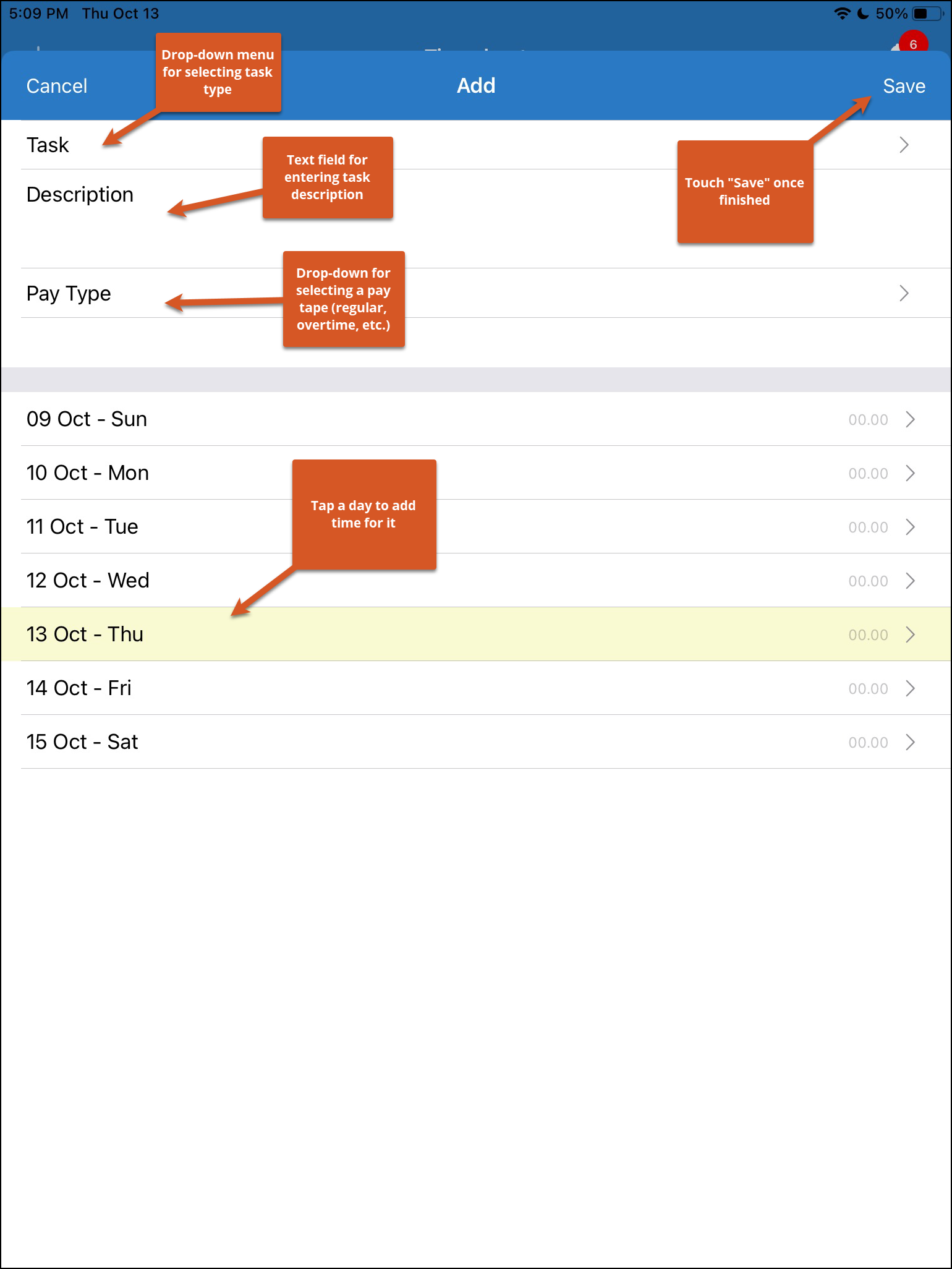
Adding Hours Manually/Without Copying
If you do not wish to copy the previous week's timesheet or would like to add your hours manually, follow these steps:
- Press the + button at the top left of your screen.
- Fill out the task type, its description, and the pay type.
- Tap the day for which you would like to add hours.
- Select the number of hours from the pop-up menu that appears.
- Tap "Add."
- Repeat for each task.
Adding Hours With Copying
If you've opened a timesheet with no prior entries for the week, you will have the option to copy your timesheet entries from the previous week with or without time. To do so:
- Select one of the copy options from the screen.
- A pop-up will appear to inform you that certain work entries will not be copied (Work Order, Service Request, and Description). Tap "Copy" to dismiss it.
- Your current timesheet will auto-populate with the previous week's information (with or without the hours, depending on what option you've selected).
- Adjust each entry as needed.
- Swipe right on an entry and tap the pencil icon to edit it. Remember to tap "Save" to save your changes.
- Swipe left on an entry and tap the trash can icon to delete it.
Editing Your Entries
To edit entries you've made:
- Swipe right on an existing entry.
- Tap the pencil icon.
- Make changes as needed.
- Tap "Save."
The Weekly Overview
The Weekly Overview is a feature unique to the NEXGEN mobile app. This view gives users a breakdown of their timesheet entries in both bar graph form and in list form, so that you can easily take in the week's activities at a glance.
Viewing Your Week's Overview
To view an overview of the current week:
- Tap "This Week's Overview" at the top right of the screen.
- The top half of your screen will display a bar graph of your hours.
- The bottom half of your screen will display a list view summary of your hours.
- Tap "Close" at the top left to exit the overview screen.
Related Articles
iPad Help Videos - General Help
Need quick help on a NEXGEN iPad skill? Review the PDF list below for a list of existing help videos. Jump to a video topic by using the table of contents above. Getting Started Topic Link Download App From App Store https://youtu.be/Izw4HNAkUfc ...Edit GIS Features - iPad
Feature Editing Setup Users in NEXGEN have the ability to edit GIS layers directly from the GIS module in NEXGEN. Before being able to edit GIS features, GIS settings must be configured correctly by system administrators and GIS users must enter the ...QR Code Overview - iPad
QR codes can be used throughout the NEXGEN app and serve different functionalities depending on where the QR code icon is located. This article goes over the different methods of using QR codes on the iPad in three different modules. QR Codes in the ...Go Offline - iPad
You can work offline in NEXGEN by accessing Offline Mode through our mobile apps. For steps on how to access Offline Mode on the iPad, see below. Video Overview Access Offline Mode To access Offline Mode on the iPad: Tap on the NEXGEN Hot Spot. Tap ...Change the Status of a CA on the iPad - Condition Assessment
Since sub-statuses were introduced to the Condition Assessment (CA) module, changing the status of a CA has changed a bit. To change the status of a Condition Assessment, review the steps below. Navigating to the Condition Assessment Module To ...
Recent Articles
NEXGEN Admin Webinar Series (Part 7: Workflow Automation & User-Defined)
Video Guides: How to Use NAMI Dashboards
Accessing NAMI Dashboards Learn how to locate and access NAMI Dashboards within Work Orders, Service Requests, and Preventive Maintenance. Changing Tabs and Interactive Functionalities See how to navigate dashboard views, explore different metrics, ...June 2026 New Feature Webinar
Latest Phone Release - Version 2.0.5 (June 2026)
Phone Application Updates Asset Inventory Users can now type in an asset QR code in the search bar to find an asset in addition to scanning. (#23758) Form A quick action button to create a form will now be visible in the Hotspot. Users can tap to ...iPad Version 3.0.6 (April 2026)
iPad Updates Bug Fixes Resolved comments cutting off on mobile devices. (#24035) Fixed the issue of a Flag label unintentionally showing when completing assets. (#26071) Users should now be able to request items that are at zero quantity from the ...