User Defined Module Overview
NEXGEN software has many fields that can be customized to personalize your software. These fields are called UDFs or User Defined Fields. Within the "Settings" module, you can edit these UDFs to align with your current workflows. To learn more about the "User Defined" module within NEXGEN look to the sections below.
User Defined Module Navigation
User Defined Module Sidebar
The User Defined Module sidebar allows you to view your UDFs and add new UDFs to your system. For more information on the UDF sidebar, look at the image below.
Navigating to the User Defined Module
The "User Defined" module can be found within the "Settings" module. To navigate to the "User Defined" module, follow the steps below: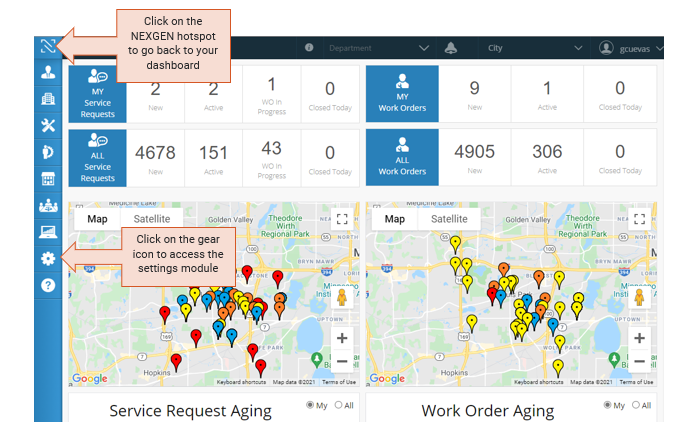
- Navigate to the "Settings" module by clicking on the gear icon on the left hand side of your screen. If you cannot see the settings module on your screen, make sure you go back to your dashboard first by clicking on the NEXGEN hotspot.
- Click on the "Setup" icon. The icon looks just like the "Settings" module icon.
- Click on the "User Defined" icon. It looks like a pencil and paper.
Adding an Inspection Type
To create an Inspection Type you must do that from the "User Defined" module. To do this, follow the steps below:
- Navigate to the "User Defined" module. (follow the sub steps below if you are having trouble finding the module)
- Navigate to the "Settings" module by clicking on the gear icon on the left hand side of your screen. If you cannot see the settings module on your screen, make sure you go back to your dashboard first by clicking on the NEXGEN hotspot.
- Click on the "Setup" icon. The icon looks just like the "Settings" module icon.
- Click on the "User Defined" icon. It looks like a pencil and paper.
- Click on the "+ Add" button on the top left of the screen.
- Select "Inspection Type".
- Type in the name of your new inspection type and click "+ Add". Make sure the "Active" box is checked if you would like your inspection type to be visible in NEXGEN.
Adding a Condition Assessment Type
To create an Inspection Type you must do that from the "User Defined" module. To do this, follow the steps below:
- Navigate to the "User Defined" module. (follow the sub steps below if you are having trouble finding the module)
- Navigate to the "Settings" module by clicking on the gear icon on the left hand side of your screen. If you cannot see the settings module on your screen, make sure you go back to your dashboard first by clicking on the NEXGEN hotspot.
- Click on the "Setup" icon. The icon looks just like the "Settings" module icon.
- Click on the "User Defined" icon. It looks like a pencil and paper.
- Click on the "+ Add" button on the top left of the screen.
- Select "CA Type".
- Type in the name of your new condition assessment type and click "+ Add". Make sure the "Active" box is checked if you would like your Condition Assessment type to be visible in NEXGEN.
Related Articles
Create an Inspection Using the Inspection Type Template
Inspection Template To facilitate the creation and modification of inspections in NEXGEN, our software gives you the option of downloading an inspection template. The downloadable template lets you edit and format your inspections on an excel sheet ...Adding a UDF to a Work Order Asset - User Defined
Users can create User Defined Fields (UDFs) that will be specific to each asset on a work order. These UDFs can be configured for all work orders or work orders for a particular department, division, or main task. Configuring a Work Order Asset UDF ...Configure Default Values in Inspection Forms - Forms
Users can configure a default option for AutoComplete, DropDown, and ListBox when creating Inspection forms. Doing so will help streamline data entry in Inspections and standardize Inspection form options, if needed. This is by allowing fields to ...Mandatory UDFs at Status Change - User Defined
User-defined fields (UDFs) can now be made mandatory at any status change on service requests and work orders. For example, certain UDFs might be required in order to Complete the work order vs Close the work order. Navigate to Settings > Setup > ...User Group Permission Definitions
We're going through some changes! As we continue to make improvements to our software, we are changing how our permission options affect end users. Because of this, you may notice that some permissions are listed as not in use. Thank you for your ...
Recent Articles
NEXGEN Admin Webinar Series (Part 7: Workflow Automation & User-Defined)
Video Guides: How to Use NAMI Dashboards
Accessing NAMI Dashboards Learn how to locate and access NAMI Dashboards within Work Orders, Service Requests, and Preventive Maintenance. Changing Tabs and Interactive Functionalities See how to navigate dashboard views, explore different metrics, ...June 2026 New Feature Webinar
Latest Phone Release - Version 2.0.5 (June 2026)
Phone Application Updates Asset Inventory Users can now type in an asset QR code in the search bar to find an asset in addition to scanning. (#23758) Form A quick action button to create a form will now be visible in the Hotspot. Users can tap to ...iPad Version 3.0.6 (April 2026)
iPad Updates Bug Fixes Resolved comments cutting off on mobile devices. (#24035) Fixed the issue of a Flag label unintentionally showing when completing assets. (#26071) Users should now be able to request items that are at zero quantity from the ...