Edit Multiple Condition Assessment Records Simultaneously
- Go to Assets > Condition Assessment
- On the Condition Assessment list view, select the desired Condition Assessments by clicking their corresponding checkboxes
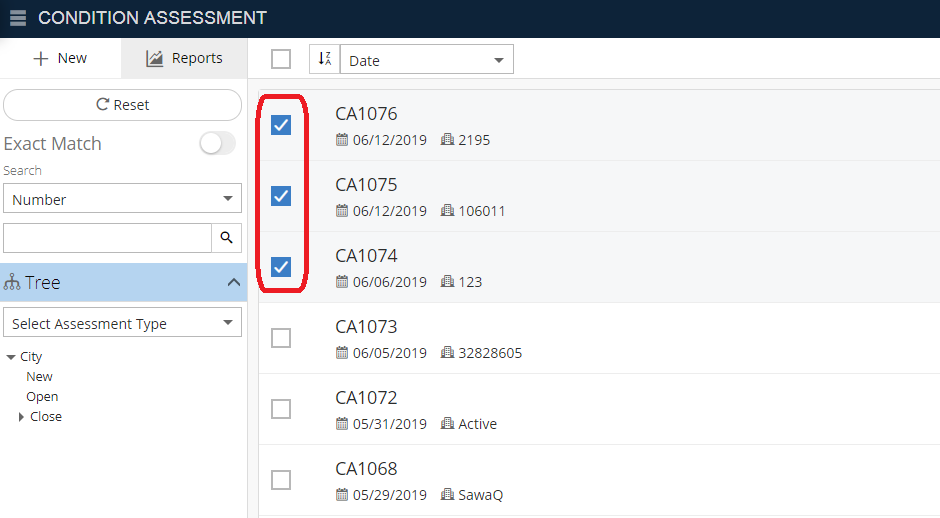
- On the toolbar, click Multiple Edit on the top right toolbar (This option will not be available unless Condition Assessments are selected)

- Fill in details
- Click Save
Related Articles
Edit Multiple Service Requests - Service Request
NEXGEN users can edit or print multiple records at a time. This can be especially useful when you need to change the same information for many service requests, such as replacing a lead worker. See below for more on how to select, edit, or print ...
Edit Multiple Customer Records Simultaneously
Go to Customer > Customer From the List view, select multiple Customer records by clicking the checkboxes to the left of the Customer records Click Multiple Edit from the top right toolbar (this icon will not appear until a Customer record is ...
Edit Condition Assessment Information
Go to Assets > Condition Assessment Select any existing Condition Assessment Click on Edit in the zone at the top of the page (this zone will contain the Condition Assessment Number) Edit details Click Save
Print Condition Assessment Records
Go to Assets > Condition Assessment Select any existing Condition Assessment Click on Print icon on the toolbar in the top right of the screen After clicking the Print icon, a Condition Assessment Details report will be downloaded Open downloaded ...
Multiple Edit of Equipment Records
Go to Resource > Equipment Select multiple existing Equipment Click on the multiple edit button on the top Update any common fields Click Save