Create a New Condition Assessment Record
Back
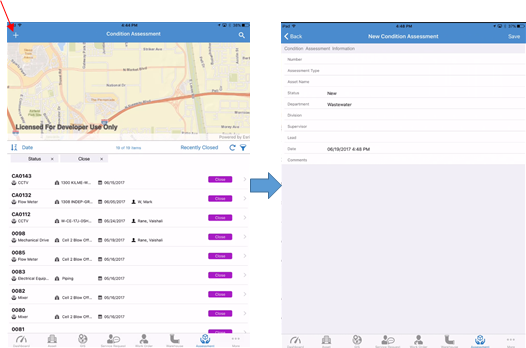
- Tap on Assessment module
- Tap on + at the top left
- Fill in required information marked by an asterisk
- Tap Save
Related Articles
Attach a New Work Order to a Condition Assessment Record
Back Tap on Assessment module Tap on an existing Condition Assessment Tap on Work Order tab Tap on + Work Order Fill in required information marked by asterisk Tap Save Note: You can also use Action button to add a new work order to the Condition ...
Create New Condition Assessment From Asset Inventory
Back Tap on Asset module Search for an existing asset Tap on the asset Tap on Action button Tap on New CA Fill in the details Tap Save
Add Attachment to an Existing Condition Assessment
Back Tap on Assessment module Tap on an existing Condition Assessment Tap on Attachments tab Tap on the Upload icon Choose where to upload the image from Tap OK to allow the iPad to access your photos Select the image from the location Enter a new ...
Change the Status of a CA on the iPad - Condition Assessment
Since sub-statuses were introduced to the Condition Assessment (CA) module, changing the status of a CA has changed a bit. To change the status of a Condition Assessment, review the steps below. Navigating to the Condition Assessment Module To ...
Delete Condition Assessment
Back Tap on Assessment module Tap on an existing Condition Assessment Tap on Action button Tap on Delete Tap OK to confirm