Attach Vendor to an Asset
- Go to Assets > Backflow
- Open an existing Backflow Asset
- Locate Vendor zone and click + Add
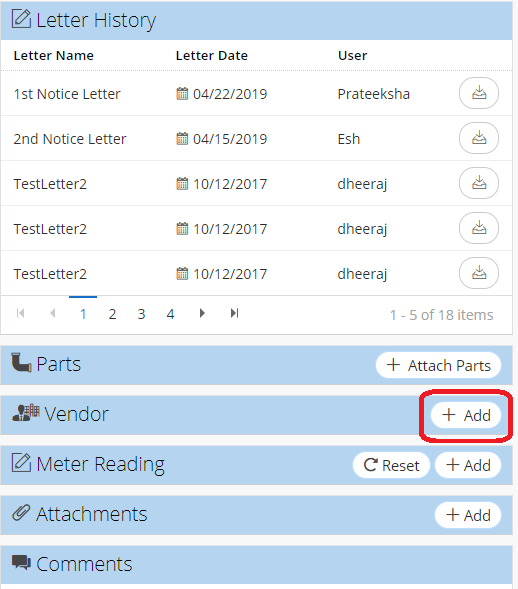
- Select vendor from the Vendor dropdown list
- If applicable, check Default to set vendor as default for asset record
- Click Save
Related Articles
Attach Vendor to an Asset
Vendors can be attached to asset records in the Vendor zone. It can be helpful to attach a vendor to an asset record so you can easily find who to order from when it's time to replace an asset. Video Overview Add Vendors to an Asset Open an ...
Attach Items to Assets for Use in Work Orders (Bill of Materials) - Asset Inventory
Users can attach items to assets in the Asset Inventory. This means that when that asset is attached to a work order in NEXGEN, you can add the items attached to the asset to the work order more easily. Note: This feature only streamlines the process ...
Add Items Attached to an Asset to a Parent PM - PM
If you have previously attached an item to an asset, you can quickly add that item to a parent PM ifs associated asset is attached to that PM. See below for instructions on how to do so. Navigate to the Preventive Maintenance Module To navigate to ...
Attach Parts to an Asset
Attaching parts to an asset saves time when filling out a work order for this asset. When adding parts to a work order for this asset, this allows you to use the "Parts Attached to Asset" filter to see the specific parts you need. Video Overview ...
Asset Replacement and Refurbishment - Asset Inventory
If an asset needs to be replaced and/or refurbished, you can follow the workflows below to document the process in NEXGEN. The processes involve a technician who performs the work needed and records asset details as well as an asset manager who ...