Hide ALL Completed Assets in Work Order
Back
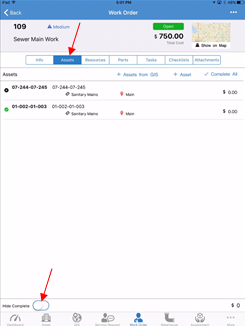
- Tap on Work Order module
- Tap on an existing Work Order
- Tap on Assets tab
- Tap on Hide Complete at the bottom of the screen
Related Articles
Viewing Work Orders Closed on the Current Day - Dashboard
Back Tap on Dashboard module if not already on the screen Tap on Closed Today tab from My Work Orders Tap on any existing Work Order from the list
Edit Asset from Work Order
Back Tap on Work Order module Tap on an existing Work Order Tap on Assets tab Tap on an asset from the list Tap on the asset name Edit asset details Tap Save
Add Assets From GIS
Back Tap on Work Order module Tap on an existing Work Order Tap on Assets tab Tab on + Assets From GIS Follow the GIS tutorials for selecting single Assets or multiple Assets
Select Multiple Assets
Back Tap on GIS module Use your finger to zoom to the appropriate map level (a closer zoom makes it easier to select a single Asset) Tap on the Multiple Select button Tap your finger in multiple areas of the screen to select all of the Assets in that ...
Delete a Work Order - Work Order
You can delete work order records in NEXGEN using the iPad app. This can only be done if you have the right permissions. For instructions on how to delete work orders using the iPad app, see below. Note: If you do not have the correct permissions, ...