View Work Orders Linked to Parts
Back
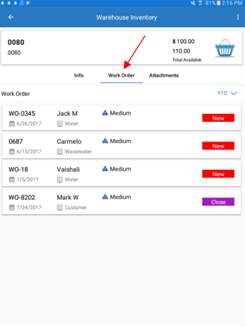
- Tap on Warehouse Inventory module from the left side menu
- Tap on an existing part
- Tap on Work Order tab
Related Articles
View an Asset's Work Order History - Asset Inventory
The asset inventory is where you can view assets' historical data, including their work order history. Use the instructions below to quickly see what work orders have the asset you are viewing attached to them. Navigate to the Asset Inventory Module ...
View a Recently Viewed Work Order
Back Tap on Dashboard module from the left side menu if not already on the screen Tap on any listed Work Order from the Recently Viewed Work Orders
View a Work Order in New Status
Back Tap on Dashboard module from the left side menu if not already on the screen Tap New from My Work Orders Tap on any existing Work Order from the list
View a Closed Today Work Order
Back Tap on Dashboard module from the left side menu if not already on the screen Tap on Closed Today tab from My Work Orders Tap on any existing Work Order from the list
View a Work Order in Active Status
Back Tap on Dashboard module from the left side menu if not already on the screen Tap on Active from My Work Orders Tap on any existing Work Order from the list