Add Time to an Existing Work Order
Back
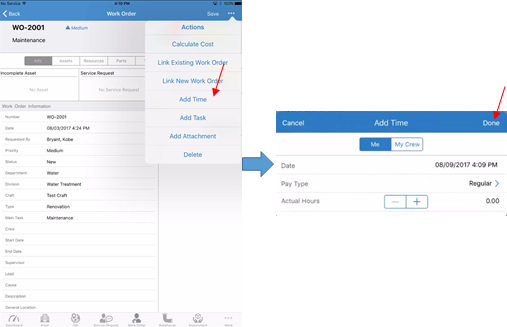
- Tap on Work Order module
- Tap on an existing Work Order
- Tap on the Action button
- Tap Add Time
- Enter the details
- Tap Done
Related Articles
Add Existing Work Order
Back Tap on Inspection module Tap on Actions button on top left Tap Existing Work Order Search or filter through the list to find the record you are looking for Tap on the Work Order Tap Save
Add Tasks to an Existing Work Order
Back Go to Work Order module Tap on an existing Work Order Tap on Tasks tab Tap on + Task Choose a task by tapping on Name and selecting a task from the list. Tap Done Note: You can also use Action button to add a task to the Work Order
Add Checklist to an Existing Work Order
Back Tap on Work Order module Tap on an existing Work Order Tap on Checklists tab There are two ways to add a checklist: From task or create a new checklist To add a checklist from task, tap on +Add From Task. Select the tasks from the list and ...
Add Attachment to an Existing Work Order
Back Tap on Work Order module Tap on an existing Work Order Tap on Attachments tab Tap on the Upload icon Choose where to upload the image from Tap OK to allow the iPad to access your photos Select the image from the location Enter a new image name ...
Add Existing Work Order to Condition Assessment
Back Tap on Assessment module Tap on Actions button on top left Tap Existing Work Order Search or filter through the list to find the record you are looking for Tap on the Work Order Tap Save